
Use the Auto-generated API
Let your users manage thier rows with POST, GET, PUT, and DELETE requests while tracking your tenant's usage with the auto-generated API.

- Author
- by Admin User
- 4 days ago
Requirements:
Follow the Create a Custom Entity guide first
Goals:
Create an API Key
GET: List all the tasks
POST: Create a task
GET: Get a specific task
PUT: Update a task
DELETE: Delete a task
View the API Key Logs
Steps
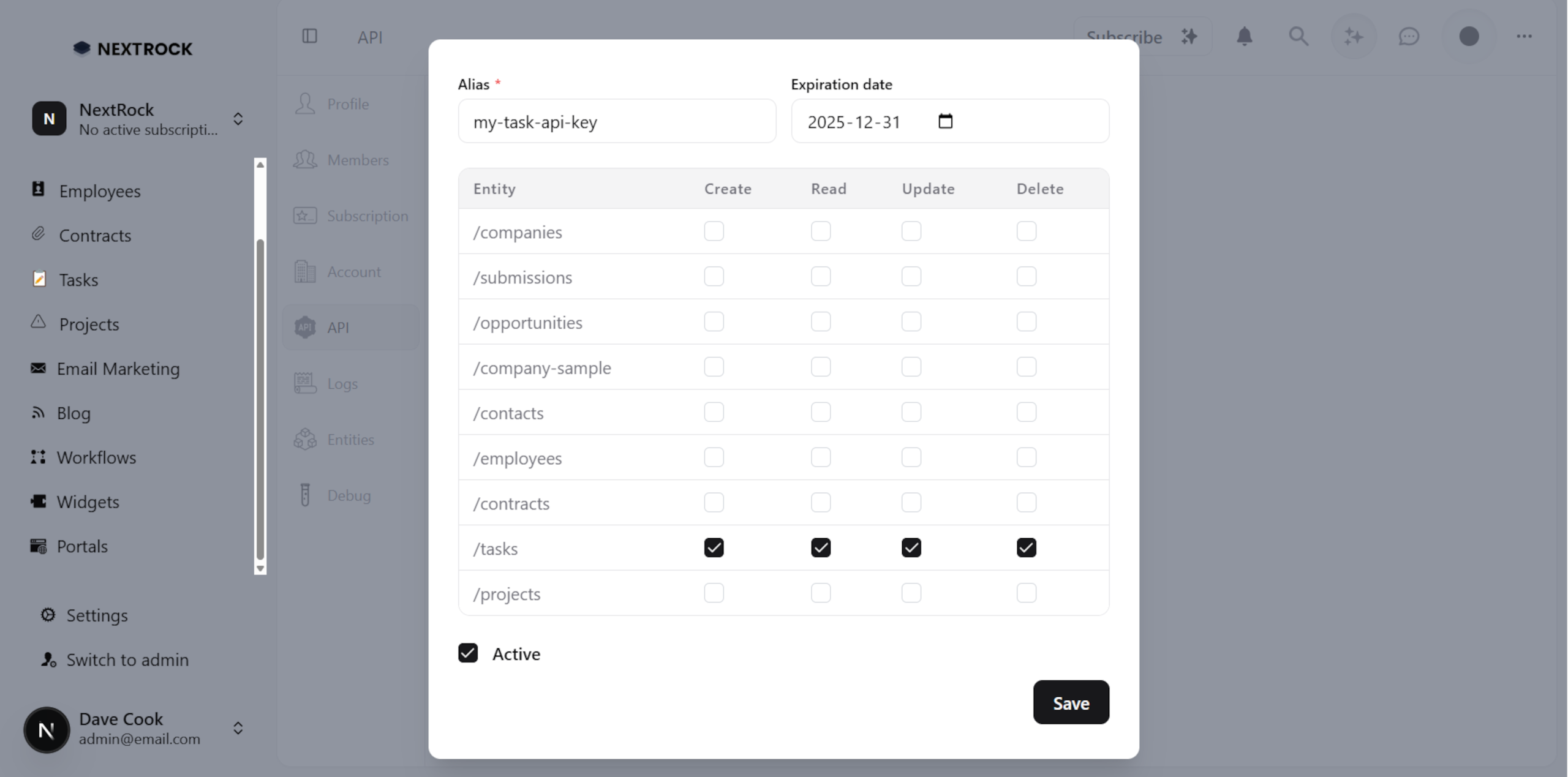
💿 Go to the /app/acme-corp-1/settings/api/keys/new to create an API Key with /tasks permissions.
💿 Install Thunder Client for VS Code.
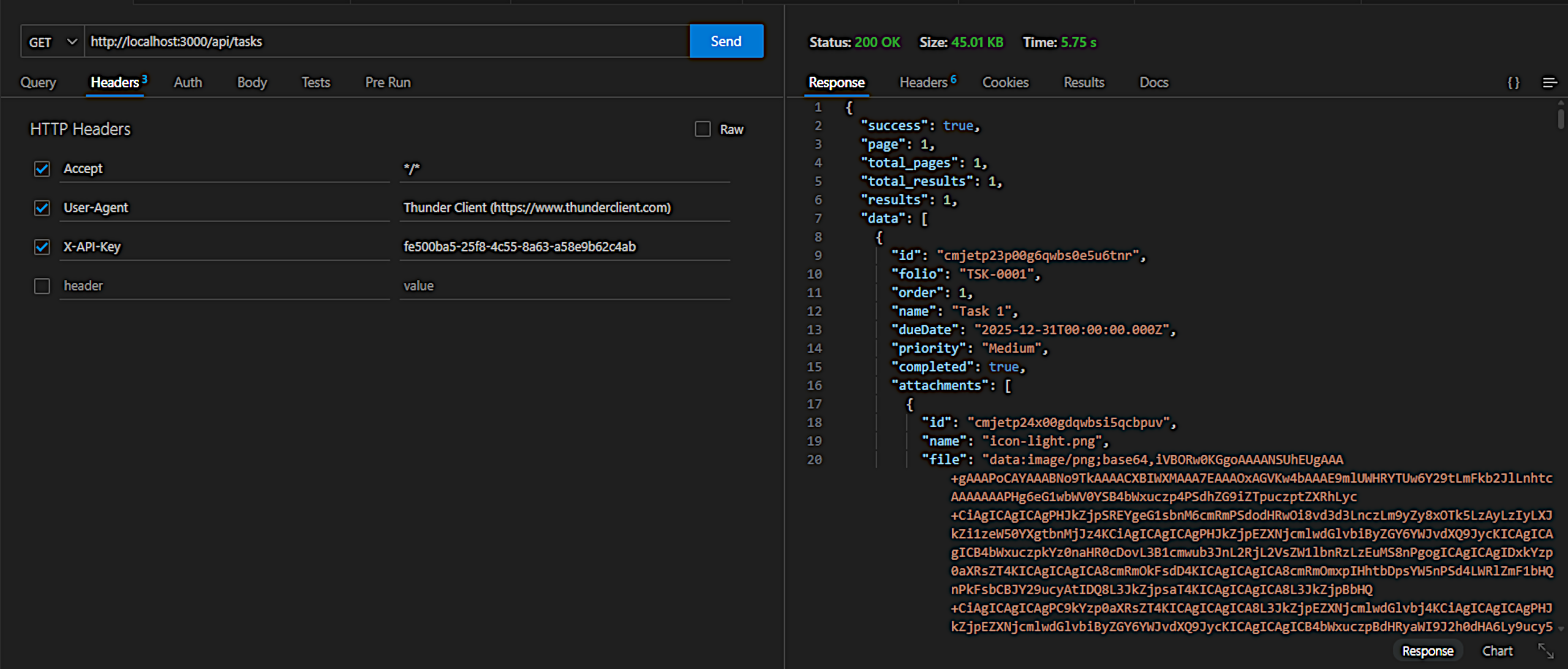
💿 Create a GET request with the following values:
Method: GET
Headers: add the "X-API-Key" header with your API Key (click on Copy to clipboard)
💿 Click Send.
You should get all the tasks in JSON format:
💿 Before making a POST request to create a task, go to /app/acme-corp-1/projects, click on Edit on any project row and copy the ID from the URL.
It should look something like this: cmjek8ugc00flqwbs7smzieku.
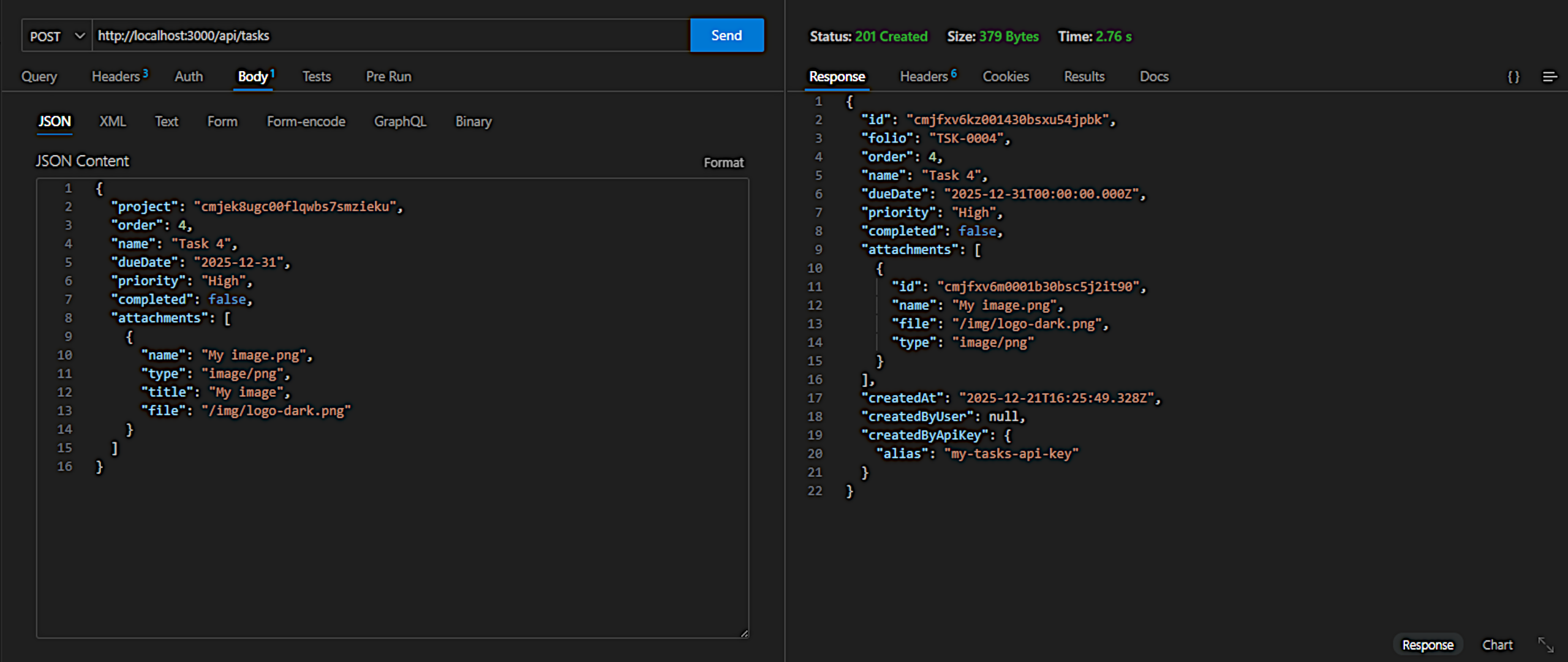
💿 Create a POST request with the following values:
Method: POST
Headers: set the "X-API-Key" header
Set the following JSON values:
{
  "project": "cmjek8ugc00flqwbs7smzieku",
  "order": 2,
  "name": "Task 2",
  "dueDate": "2025-12-31",
  "priority": "High",
  "completed": false,
  "attachments": [
    {
      "name": "My image.png",
      "type": "image/png",
      "title": "My image",
      "file": "/img/logo-dark.png"
    }
  ]
}
You should get a 201 - Created response.
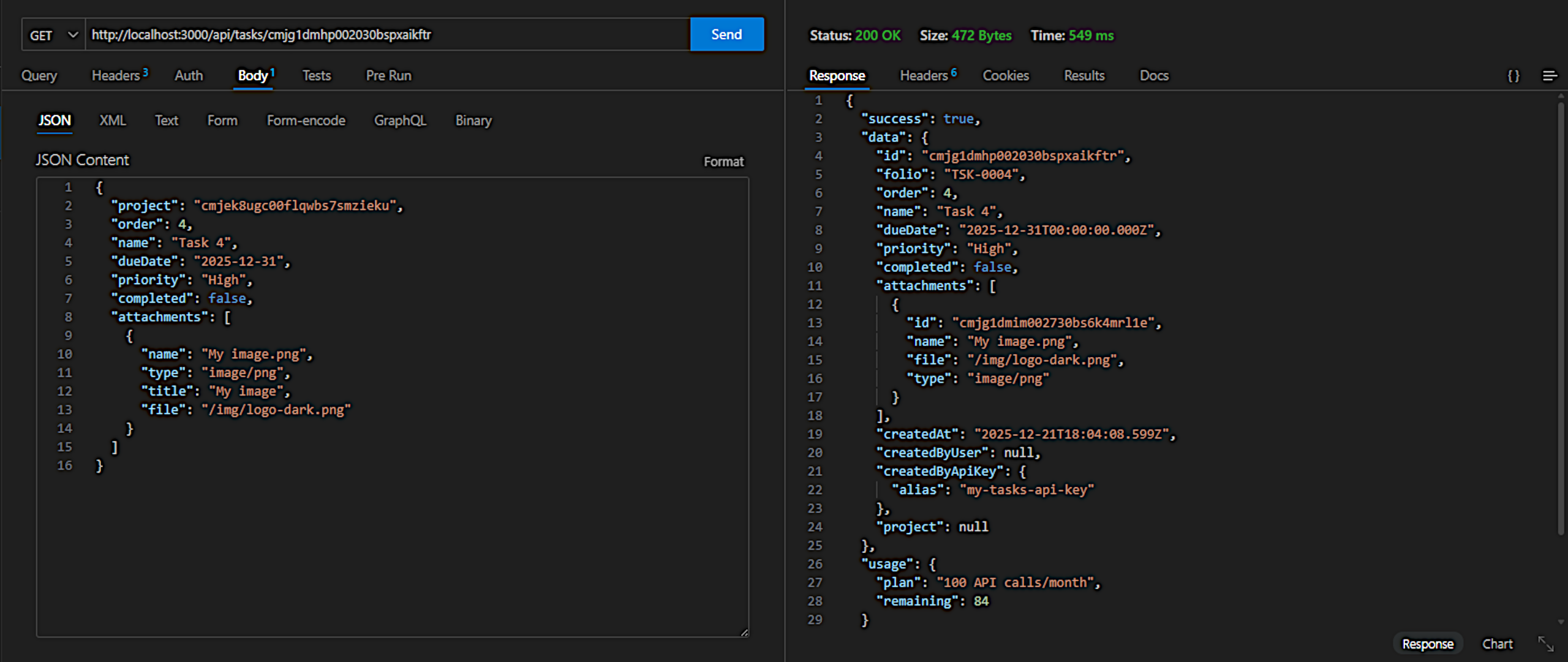
💿 Grab the ID, and make a GET request:
Method: GET
URL: http://localhost:3000/api/tasks/cmjek8ugc00flqwbs7smzieku
Headers: set the "X-API-Key" header
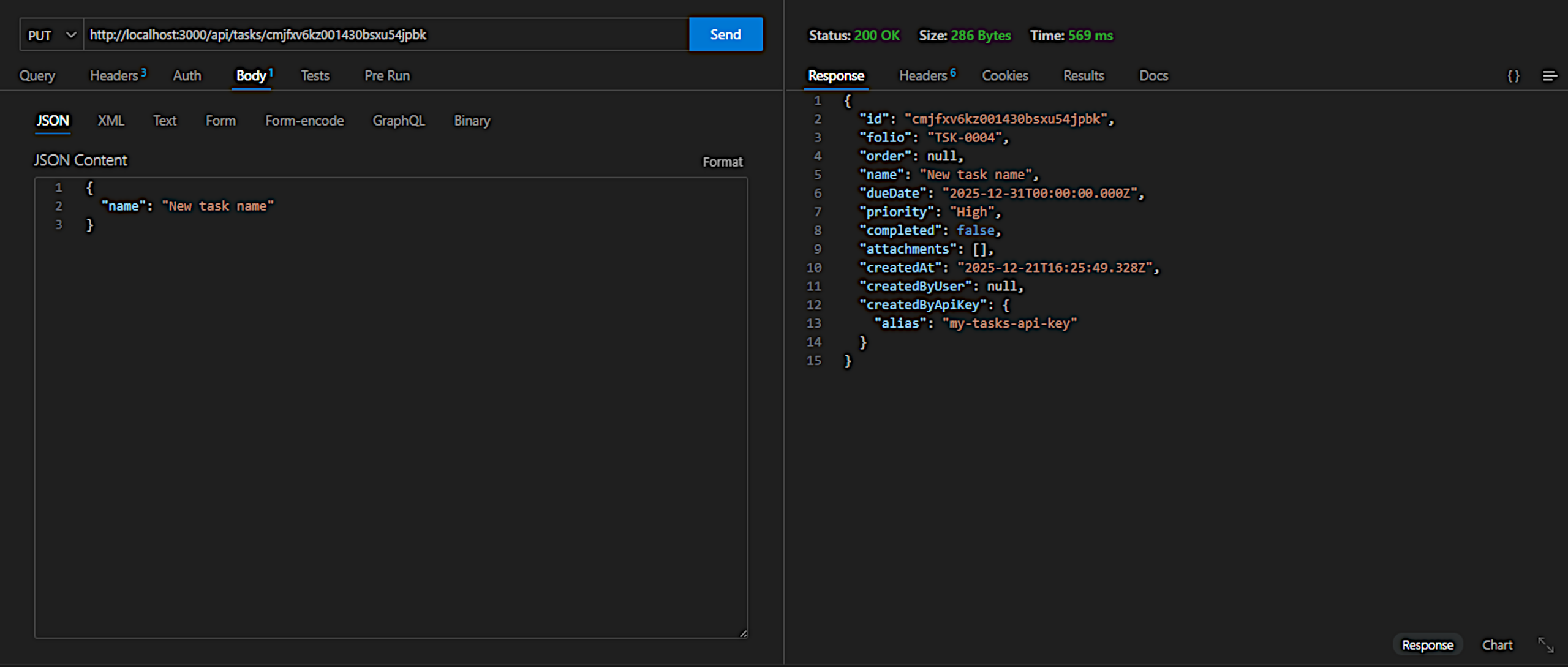
💿 Now, let's update the Task with a PUT request.
Method: PUT
URL: http://localhost:3000/api/tasks/cmjek8ugc00flqwbs7smzieku
Headers: set the "X-API-Key" header
JSON body:
{
  "name": "New task name"
}
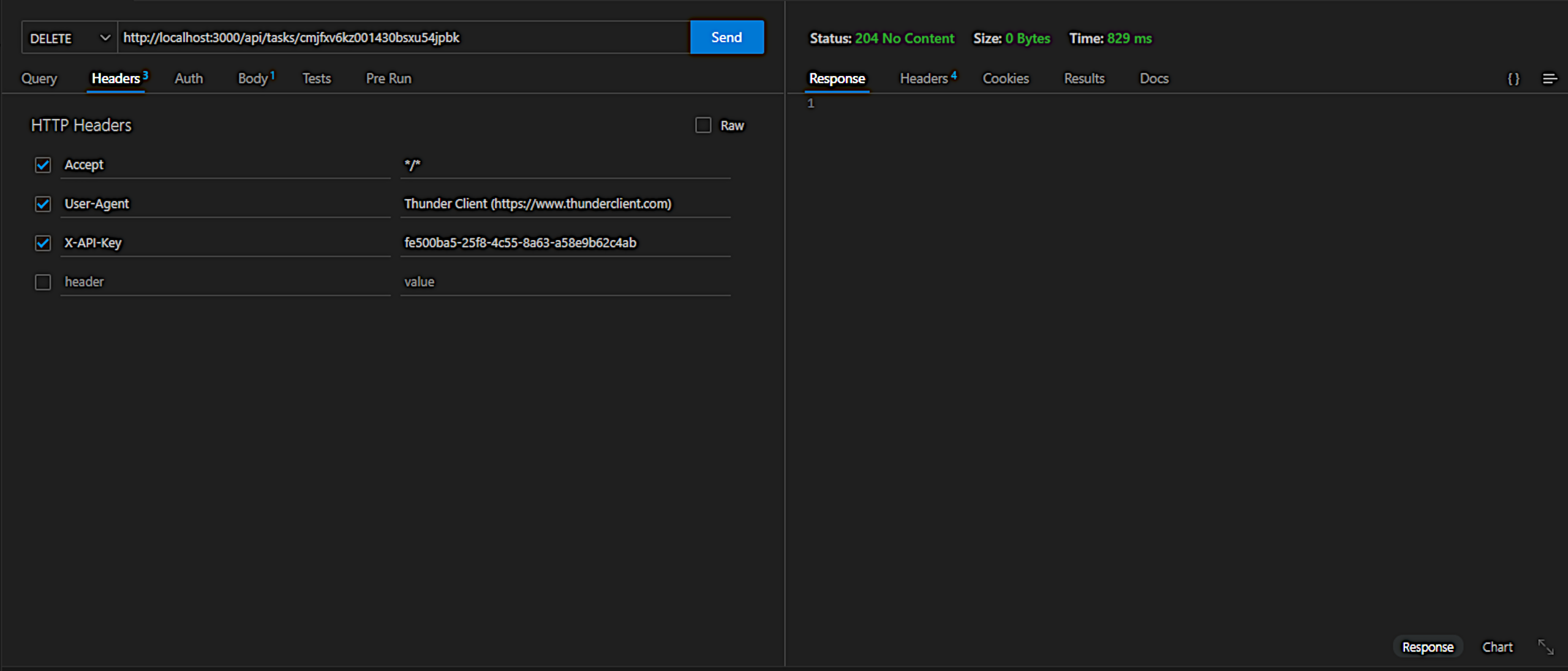
💿 Delete the Task:
Method: DELETE
URL: http://localhost:3000/api/tasks/cl3tm7c9012472e7hs7n476m9x
Headers: set the "X-API-Key" header
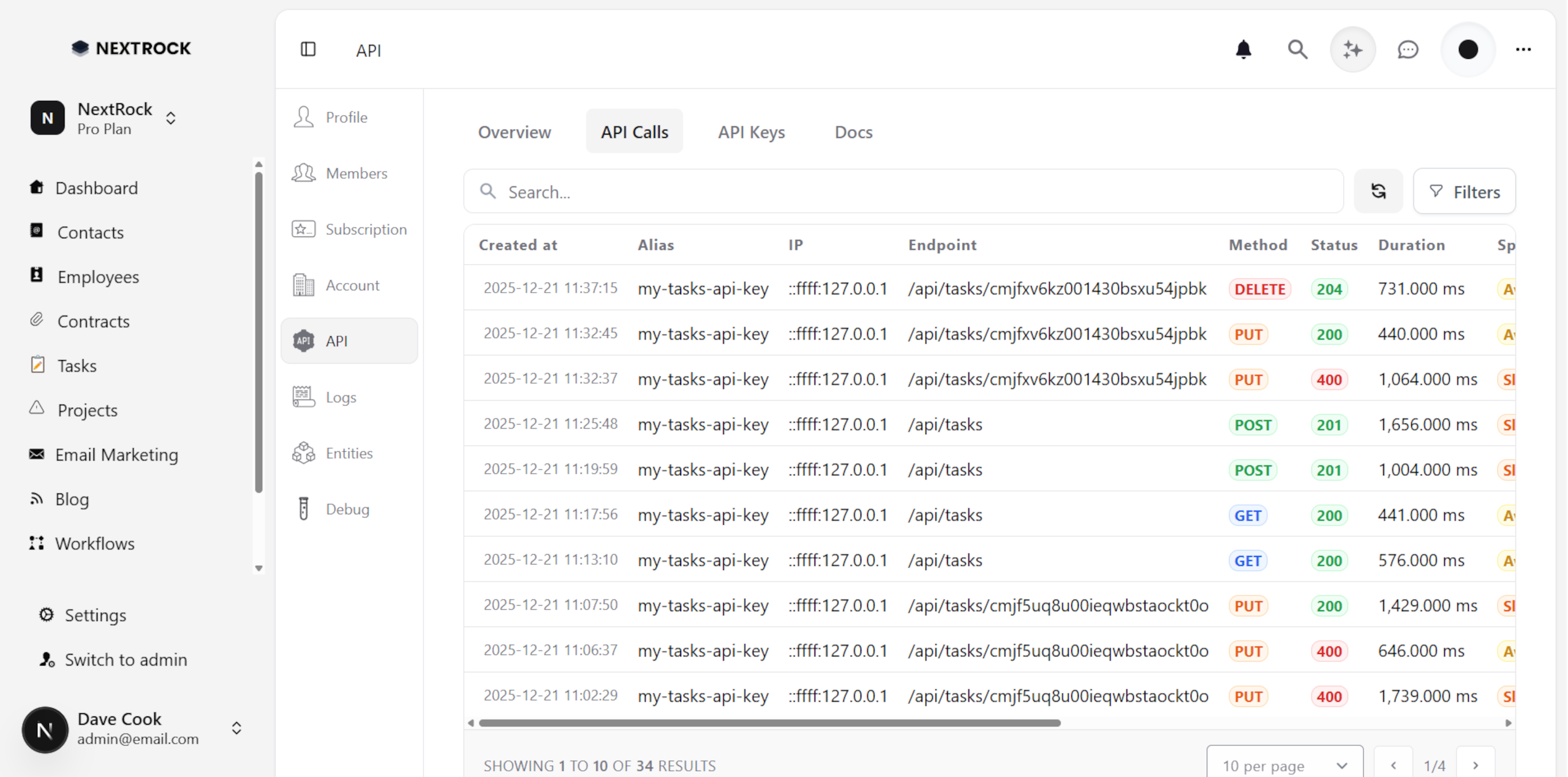
💿 Finally, view the API Key logs.
I hope this quick guide was useful! Let us know if you have any questions.